
JetBrains HTTP Client: test your APIs without leaving your IDE
When developing an API, the typical reflex is to open Postman, or more recently Bruno, to fire a few requests and check that everything works. It gets the job done, but it means constantly switching context. You code in PhpStorm, alt-tab to Postman, come back, tab again…
You might not know that every JetBrains IDE (PhpStorm, IntelliJ, WebStorm, GoLand…) ships with a full HTTP client, right inside the editor. .http files versioned with the project, executable in one click, with environment variables, scripts, GraphQL support and OpenAPI autocompletion.
I’ve been using it daily for over two years, and I have no desire to go back.
The basics: GET, POST and headers
Create a .http (or .rest) file anywhere in the project. The syntax is minimal:
### List all usersGET http://localhost:8080/api/usersAccept: application/jsonFor a POST with a JSON body, just add the content after a blank line:
### Create a userPOST http://localhost:8080/api/usersContent-Type: application/json
{ "name": "Nicolas Demay",}Headers go right after the request line, with no blank line between them. The ### separator lets you chain multiple requests in the same file and name them for easy navigation.
### AuthenticationPOST http://localhost:8080/api/loginContent-Type: application/json
{  "username": "admin",  "password": "secret"}
### Get profile (protected request)GET http://localhost:8080/api/profileAuthorization: Bearer {{auth_token}}Accept: application/json
You can run each request individually via the play icon in the gutter, or all of them at once. The response shows up in a dedicated panel with the status code, headers, and formatted body.
By the way, quick tip: if you have an XHR request causing trouble in the browser, right-click in DevTools → “Copy as cURL”, then paste it directly into a .http file. The IDE converts the cURL into HTTP Client syntax automatically. No need to rewrite the headers by hand.
Variables and environments
Define environments in an http-client.env.json file, either at the project root or in the same folder as the .http file:
{ "dev": { "host": "http://localhost:8080", "api_version": "v1" }, "staging": { "host": "https://staging.example.com", "api_version": "v1" }, "production": { "host": "https://api.example.com", "api_version": "v2" }}Secrets go in a separate http-client.private.env.json file (add it to .gitignore — we’ve all pushed a token to a public repo at least once):
{ "dev": { "api_token": "dev-token-xxx" }, "staging": { "api_token": "staging-token-yyy" }}Then use the {{variable}} syntax in your requests:
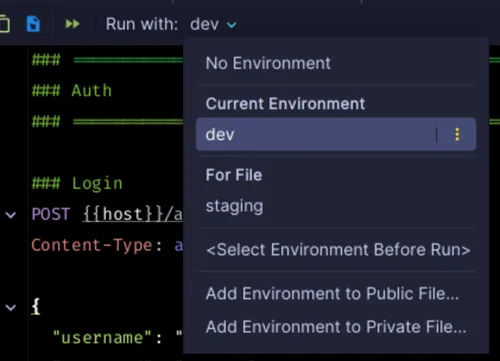
### List productsGET {{host}}/api/{{api_version}}/productsAuthorization: Bearer {{api_token}}Accept: application/jsonBefore running, a dropdown at the top of the editor lets you pick the target environment. Values from the private file override the shared one. So the team shares URLs and structure, everyone keeps their own tokens.
The IDE also provides built-in dynamic variables:
### Create a resource with a unique IDPOST {{host}}/api/itemsContent-Type: application/json
{  "id": "{{$uuid}}",  "createdAt": "{{$isoTimestamp}}",  "priority": {{$randomInt}}}
Pre-request and response handlers
Response handlers (with >) run after the response and let you test assertions or store values:
### Login and store the tokenPOST {{host}}/api/loginContent-Type: application/json
{  "username": "admin",  "password": "{{password}}"}
> {%    client.test("Login successful", function() {        client.assert(response.status === 200, "Expected status: 200");    });    // Store the token for subsequent requests    client.global.set("auth_token", response.body.token);%}
The token is now available via {{auth_token}} in all subsequent requests. You can chain calls with data dependencies.
Pre-request scripts (with <) run before sending and let you prepare data:
< {%    // Generate a signature before sending    const timestamp = Date.now().toString();    request.variables.set("timestamp", timestamp);    request.variables.set("requestId", $random.uuid);%}POST {{host}}/api/secureContent-Type: application/jsonX-Timestamp: {{timestamp}}X-Request-Id: {{requestId}}
{  "data": "payload"}
In short, you get client.log() for debugging and client.test() for building real test suites. Nothing groundbreaking, but it gets the job done without leaving the editor.
File uploads
To send a file in a request, use the < syntax followed by the path:
### Simple upload (body = file content)POST {{host}}/api/importContent-Type: application/json
< ./data/import.json
### Multipart upload (form with file)POST {{host}}/api/uploadContent-Type: multipart/form-data; boundary=boundary
--boundaryContent-Disposition: form-data; name="file"; filename="document.pdf"Content-Type: application/pdf
< ./files/document.pdf--boundaryContent-Disposition: form-data; name="description"
My uploaded file--boundary--
Note: < reads a file as input (into the body), > is reserved for response handlers. Don’t mix them up.
GraphQL support
The HTTP client natively supports GraphQL with the GRAPHQL keyword:
### QueryGRAPHQL {{host}}/graphql
query { users { id name email }}
### Mutation with variablesGRAPHQL {{host}}/graphql
mutation ($input: CreateUserInput!) { createUser(input: $input) { id name }}
{ "input": { "name": "Nicolas", }}What if the IDE already knows your API?
If the project contains an OpenAPI specification (or points to a remote file), the IDE uses it to enrich .http files:
- URL autocompletion: endpoints defined in the spec are suggested as you type
- JSON body autocompletion: required fields are proposed automatically
Same principle for GraphQL: install the GraphQL plugin (free on the JetBrains Marketplace). Once enabled, it introspects the endpoint schema and provides autocompletion on types, fields and arguments directly in the .http file.
This is where the advantage over Postman is most obvious: the IDE already knows the code and the API docs. No manual import, no synchronization to maintain.
The real win: one-click debugging
This might be the least visible advantage, but it’s the one that saves me the most time. When developing an API in PhpStorm, you can set an Xdebug breakpoint in the code, then rerun the HTTP request in a single click.
No need to go back to the .http file every time. The play button at the top of the IDE remembers the last command executed — whether it was a unit test or an HTTP request. Edit the code, set a breakpoint, click play, and you’re straight in the debugger with the right request. The edit → test → debug cycle takes a few seconds, without switching windows.
With Postman, this workflow is broken: you have to alt-tab, rerun, come back. Here, everything stays on the same screen.
What about AI in the loop?
The real bonus of this format is that .http files live in the repo like any other code file. Versioned, readable, shareable. And that means an assistant like Claude has direct access to them in the project context.
In practice, I regularly ask it to generate an .http request for an endpoint I just created. It knows the code, it knows the schema — the file is ready in seconds. Try doing that with a Postman collection.